 Android TV boxes, phones & tablets
Set up MaliceTV
Three pieces get you going on your TV box, phone or tablet — one required, two optional. Everything stays on your device.
Android TV boxes, phones & tablets
Three pieces get you going on your TV box, phone or tablet — one required, two optional. Everything stays on your device.
What it is
MaliceTV doesn't come with any film or TV catalog, channels, or media sources of its own — it connects to services you choose and provide. (The games and music we made ourselves are included and need no setup.)
A free TMDB key powers posters, titles and descriptions so the app browses like a real library.
A debrid account gives faster, cleaner streams. Optional — the app works without one.
Bring your own source list to tell the app where to find playable links. None are included.
Step 1 · Required · Free
TMDB (The Movie Database) is a free, community-run catalog of movie and TV metadata. Your own key keeps browsing personal to you.
Go to themoviedb.org/signup and register. It's free.
Visit Settings → API and request a key. Choose the Developer option and fill in the short form.
Copy the API Key (v3 auth) value — a long string of letters and numbers.
On your TV box open Settings → TMDB Key, paste it, and save. Posters and titles start loading.
Your key stays on your device. MaliceTV never sends it anywhere except directly to TMDB, and no key is shared between users.
Step 2 · Optional · Paid
A debrid service is a paid account that turns links into fast, direct streams. Optional — set one up only if you want smoother playback. Use whichever you already have.
Modern debrid service. Open an account, then copy your API key from account settings.
Popular, long-running service. Get your key from My Account → API after signing up.
Alternative provider. Generate an API key in your account's API/security area.
Cloud + debrid service. Copy your API key or PIN from your account page.
Use the links above — the providers' own websites. Always sign up and pay there directly, never through a third party.
Each service shows an API key or token in your account settings once you're subscribed.
Open Settings, tick the service you use, and paste its key into the field that appears.
Step 3 · Optional
MaliceTV ships with no sources. To give it somewhere to find playable links, you add an add-on or import a source list that you provide. You choose what it connects to; nothing is supplied here.
Add-ons are set up on their own websites. Configure the one you use, then copy the install link it gives you — usually ending in /manifest.json. Paste it exactly as-is; stremio:// links and plain base URLs work too.
Many add-ons return nothing until you've configured them and generated a link. An add-on that finds no streams is usually an unconfigured one.
Those links can be hundreds of characters. Open Add-ons on your TV and it shows an address like http://192.168.1.42:8730/s/4821. Open that on a phone or PC on the same Wi-Fi and you get a page where you can paste your links and keys, or upload a file, then send it straight to the TV. The address only works while that screen is open, and only on your own network.
Put addons.txt (one link per line) and/or your sources .json into Android/data/com.malicetv.app/files/addons/ on a USB drive, plug it in, and press Import from file. MaliceTV reads the file and adds whatever sources it contains.
Add-ons vs Imported Sources. Both feed the same engine. Add-ons take a single link and assume the standard Stremio layout — easiest, and right for most. Imported Sources takes a full JSON where you control how results are read, which some add-ons need to show correct names and file sizes. If an add-on returns streams with blank names or no size, that's the one to reach for.
If nothing plays, open a title and read the message — MaliceTV lists each source and what it returned, so a mistyped address or an unconfigured add-on says so plainly.
MaliceTV is a neutral player. It doesn't include, host, endorse, or recommend any particular source, and what you choose to import is up to you and your local laws.
Optional
MaliceTV has a channel guide and a cable-box style player, but no channels of its own. Open Live TV from the side menu, choose Sources, and add what you already have.
If a TV service you subscribe to gives you an M3U playlist link (and a guide link), or a login with a server address, username and password, add it and its channels and programme guide appear.
Have an HDHomeRun tuner with an antenna? Press Find my tuner and your local over-the-air channels show up — free, from your own antenna.
Up/Down or CH+/CH− change channel, number keys jump straight to one, OK opens the channel list, and holding OK on a channel makes it a favourite. On a phone, swipe up or down.
Long links? The Sources screen shows the same phone/PC hand-off address as Add-ons, so you can paste them from another device. Free covers one source; Pro adds more sources, catch-up (where your service offers replay) and recording.
MaliceTV doesn't provide, host or recommend any channels or playlists. Only add sources you have the right to watch.
Also included
MaliceTV is more than a media player — three extra sections come built in, each with its own button in the top bar. Same bring-your-own spirit for sources — plus original games and music from us, included free.
Bring your own emulator cores and game files, plug in a controller (up to 4 players), and play — with save states, box art and per-game settings. Full setup is on the Games page.
Tap Food to browse hundreds of recipes by category and cuisine, scale servings, build a grocery list, match meals to what's in your fridge, and save favourites. It just needs an internet connection — nothing to set up.
Tap Music for thousands of free internet-radio stations right away, or add your own tracks: drop audio files into the music folder on a USB drive (Android/data/com.malicetv.app/files/music/) and press Scan.
Optional · Windows
Have movies, shows, music — or a PC game collection — on your computer? MaliceTV Desktop is a tiny free app for your PC. Run it, pick your folders, and your collection shows up on your TV over your home network, with nothing uploaded anywhere. New in this version: send your games straight to the TV's Games section — or stream the whole PC screen.
Run the download and click through — past the Windows warning above, it's next-next-finish. No administrator needed unless you tick the optional controller support.
When it opens, click Add folder and choose your Movies, Shows, Music — or a Games (ROMs) folder. Note the pairing PIN it shows.
On MaliceTV open the PC tab for media, or Games → Get from PC to pull your games over. It finds your computer automatically — enter the PIN once. Keep the PC app running while you use it.
Everything stays on your own network. MaliceTV Desktop only serves the folders you add, and nothing is sent to the internet.
New · Windows
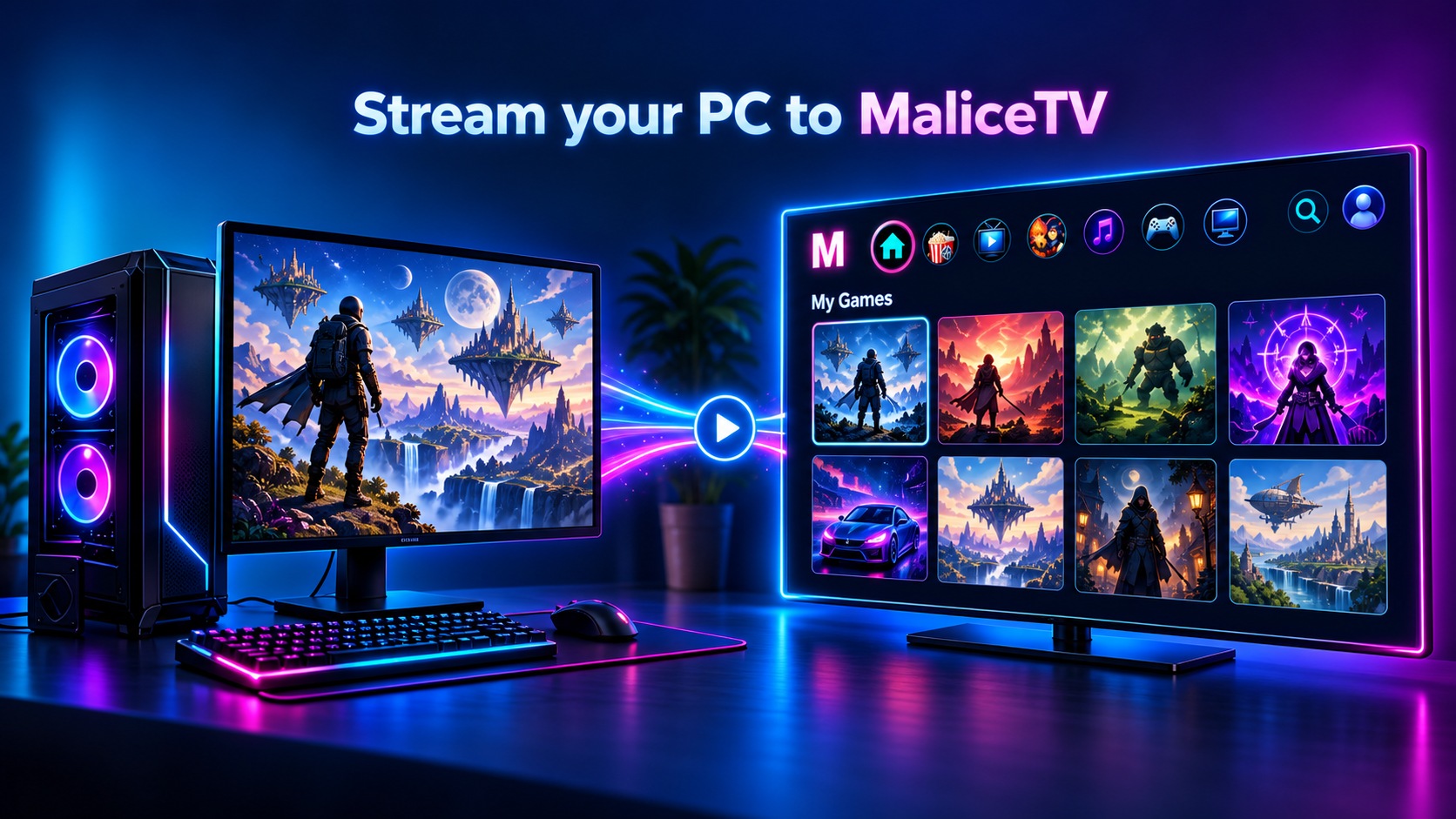
The same app can stream your entire PC to the TV — not just your folders. Your desktop, your launcher, your games, whatever is on screen — with the mouse, keyboard and controller on your TV going back the other way. It runs over your home network at up to 1080p60, so a PC in another room plays on the big screen without moving anything.
Open MaliceTV Desktop and turn on Stream this PC — on the dashboard, or by right-clicking the icon by your clock. It's off by default, and stays off until you say so.
Tap the Stream tab, pick your PC, and enter the same pairing PIN. Your desktop appears on the TV a second later.
A USB or Bluetooth mouse and keyboard on the TV box control the PC directly. Tick controller support during install and a gamepad shows up on your PC as an Xbox pad, so games just work.
Nothing is uploaded and nothing passes through a server of ours — the video goes straight from your PC to your TV across your own network. Needs 64-bit Windows 10 or 11 and a GPU from roughly the last decade for the hardware video encoder.
Add your TMDB key and you're browsing. Add debrid and sources when you want playback — then explore Games, Food and Music. Everything stays on your device.
← Back home